Knob
This guide explains how to set up the LOFT Knob using the Loft App.
⚠️ Keep in mind: To set up the Knob, the device must already be installed. If you don't know how to install a device, click here.
🔄 Reset the Knob (Provisioning Ready):
To reset the Knob and make it ready for pairing and installation, press and hold the Knob for 15 seconds, then release it. The Knob will enter reset mode and become discoverable and installable in the Loft App.
Steps to Setup Knob Device
-
Open the Loft App
- Navigate to the Rooms section.
-
Select a Room
- Tap on the room where your Knob is installed.
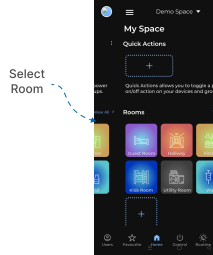
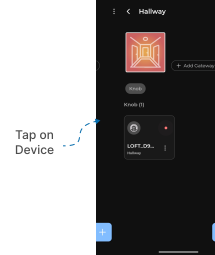
- Locate the Device
- Find the Knob device you want to set up.
- Devices pending setup are marked with a red dot.
- Tap on the device card to open its configuration screen.
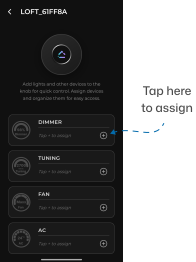
- Select a Device Type to Assign
- The Knob setup screen will display multiple device types available for assignment:
- Dimmer
- Tuning
- Fan
- AC
- Curtain
- Scenes
- Tap the “+” (Add) button next to the device type you want to assign (for example, Dimmer).
- The Knob setup screen will display multiple device types available for assignment:
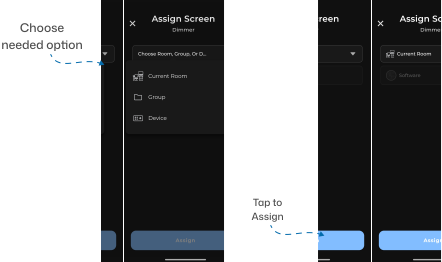
- Select an Assignment Type
- The Assign Screen will appear with a dropdown containing three options:
- Current Room: Assigns all devices of the selected type within the current room (e.g., all Dimmers in that room).
- Group: Displays and assigns available groups of the selected device type within the room.
- Device: Displays and assigns individual devices of the selected type.
- Choose your preferred assignment option, select the specific target, and tap Assign at the bottom.
- The Assign Screen will appear with a dropdown containing three options:
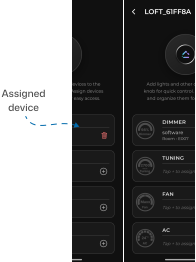
- Confirmation & Assigned Device View
- The selected device, group, or room is now successfully linked to that Knob control screen.
- The device type card will now show the assigned entity name, with a delete icon to remove or reconfigure it anytime.
Knob Interaction & Quick Control
Once screens are assigned, you can control your smart devices directly from the LOFT Knob without needing your phone:
- Switch Screens: Swipe left or right on the round AMOLED touch display to cycle between assigned device screens (Dimmer, Tuning, Fan, AC, Curtain, Scenes).
- Rotate the Knob:
- Clockwise (Right): Increases brightness, temperature, Kelvin tuning, fan speed, or opens curtains.
- Counterclockwise (Left): Decreases values or closes curtains.
- Touch Interaction: Tap or slide directly on on-screen sliders and buttons (such as Open, Pause, and Close for curtains).
- Scene Execution: Supports up to 8 scene slots. Rotate the Knob left or right to highlight a scene, then press the Knob (or tap the scene slot on-screen) to trigger it.
Notes
- Ensure the Knob device is powered on and connected before beginning setup.
- The red dot on the Knob device card will disappear once setup is complete.
- You can reassign or remove any assigned screen at any time by tapping the red delete icon next to the device type.